Tools guide
How to remove a photo background for a festival poster
Prepare a portrait or product photo for a festival greeting by removing the background and checking the final edges before sharing.
FROM THE COLLECTION
Find a design for your greeting
Use these festival collections to plan where your cutout will sit. Leave the greeting and decorative focal point visible, and inspect hair and clothing edges against the new background.
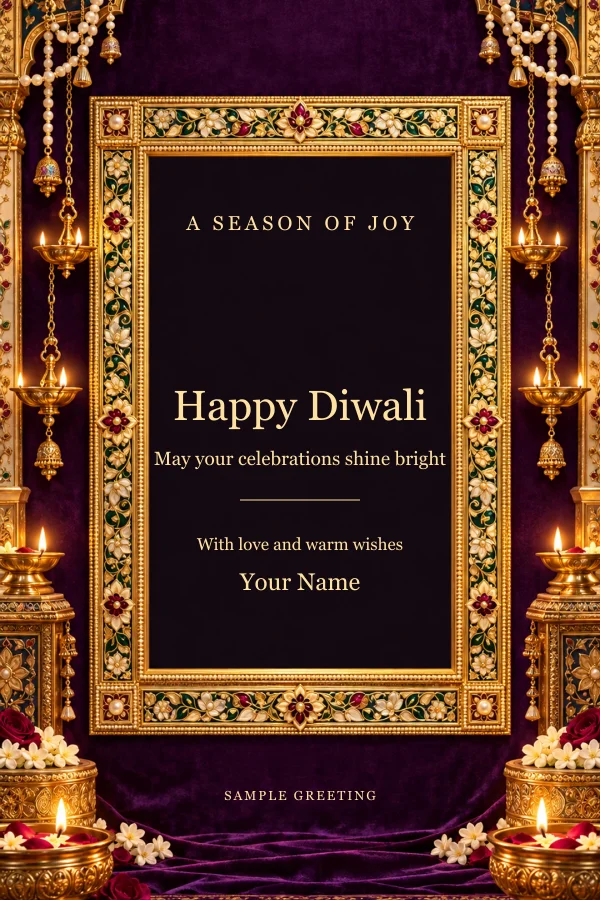
Diwali wishes sample
Explore these templates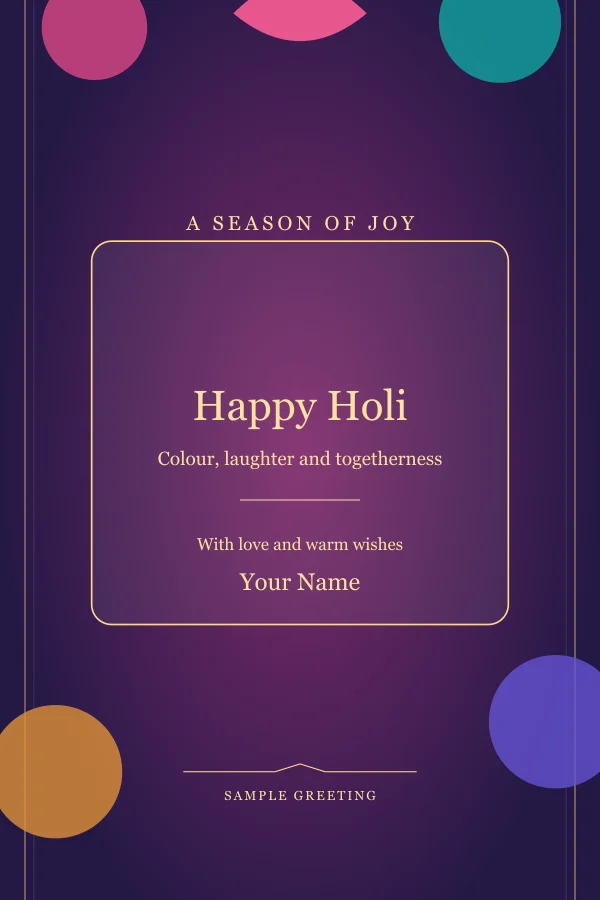
Holi status sample
Explore these templates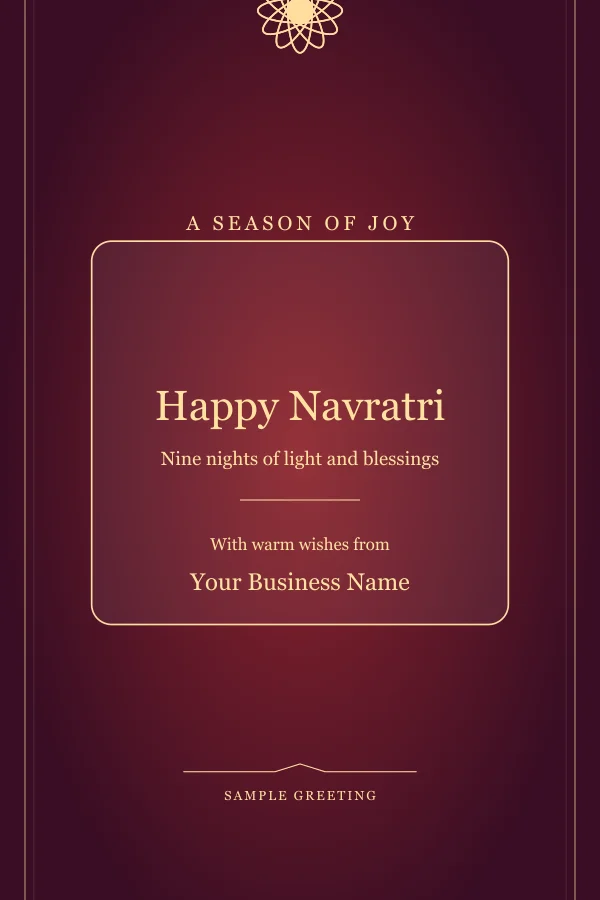
Navratri business posters sample
Explore these templatesStart with a clear original photo
Background removal works best when the subject has clear edges and good lighting. Use the highest-quality original you have rather than a heavily compressed chat image.
Photos with hair, transparent objects or similar background colours deserve an extra close review after processing.
Continue with Remove your photo background.
Check the cutout before placing it
Zoom in on the outline of the subject and check hands, hair and product edges. A clean cutout will look more natural when placed on a festive background.
If an edge looks rough, try a different photo or use a layout that gives the subject more breathing room.
Continue with Choose a poster for the cutout.
Match the result to the poster
Place the cutout where it does not cover the main greeting, logo or contact details. Leave consistent space around the image so the design feels intentional.
Keep the original photo and the finished cutout separately for future greetings.